Updated October 14, 2026. Written for SoundCraft 0.6.1 (what changed since).
The song is "Midnight Groove", 24 bars at 104 BPM in A minor, and every sound in it is synthesised by SoundCraft itself. Open SoundCraft in your browser, click once inside the app (browsers only start audio after a click or key press), then press Space. ⌘= on a Mac or Ctrl+= on Windows and Linux switches between the Edit window and the Mix window, which is where most of this happens.
One property of the browser version makes it a good practice bench: every page load starts from the same mix. Change whatever you like, write down what you did, then reload the tab and the original mix is back for an honest A/B.
What is in the demo mix
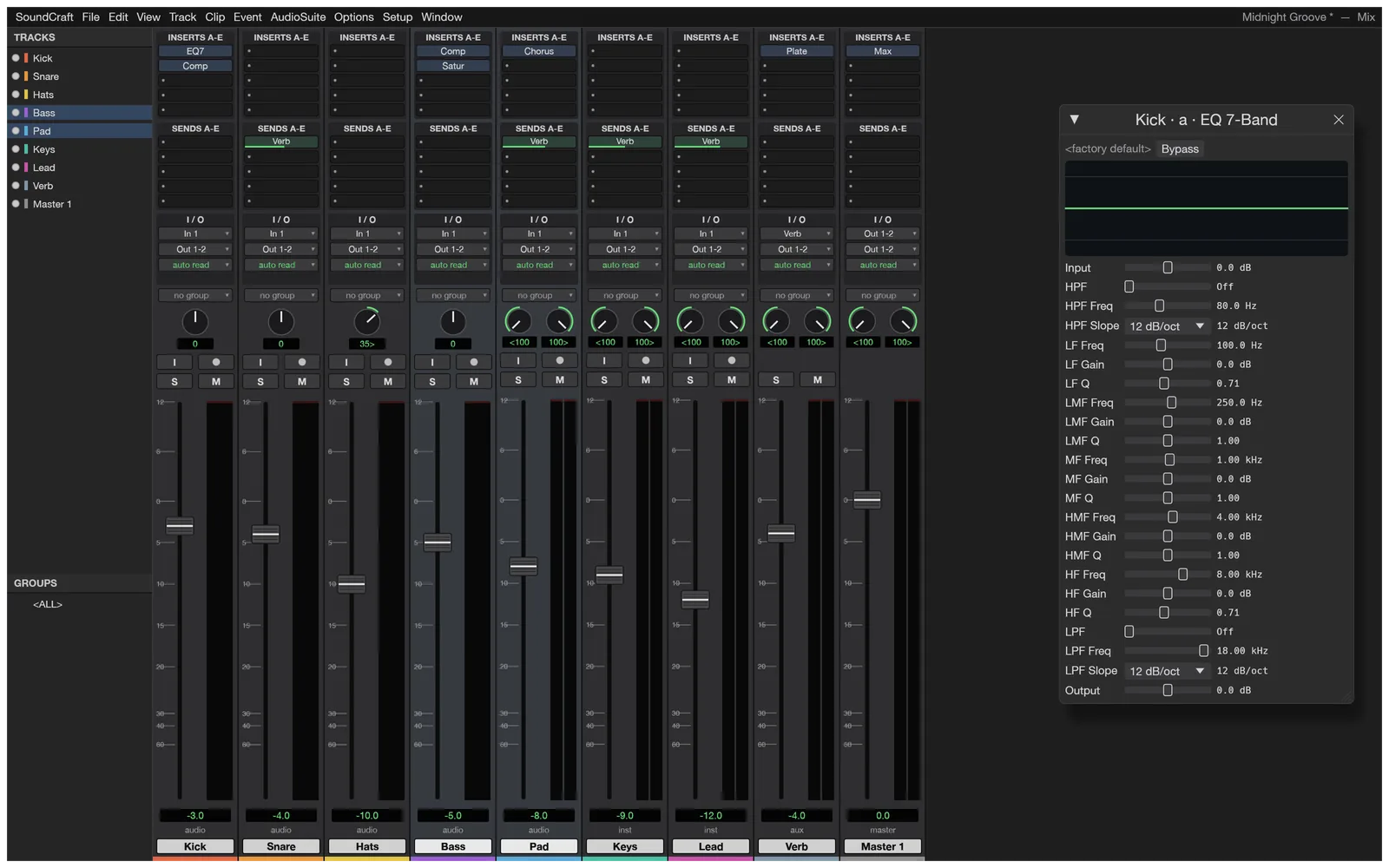
These are the starting settings, read from the demo session's source. Keep the table open while you work; it is your reference when you want to know how far you moved something.
| Track | Fader | Inserts | Send to Verb | Plays |
|---|---|---|---|---|
| Kick | -3 dB | EQ 7-Band, Compressor/Limiter | none | bar 5 on |
| Snare | -4 dB | none | -10 dB | bar 5 on |
| Hats | -10 dB, panned 35 % right | none | none | whole song |
| Bass | -5 dB | Compressor/Limiter, Saturator | none | bar 5 on |
| Pad (stereo) | automated, -30 to -8 dB | Chorus | -8 dB | whole song |
| Keys (instrument) | -9 dB | none (plays the Subtractive Synth) | -12 dB | bars 5 to 24 |
| Lead (instrument) | -12 dB | none (plays the Subtractive Synth) | -6 dB | bars 13 to 20 |
| Verb (aux) | -4 dB | Plate Reverb | n/a | fed by the sends |
| Master | 0 dB | Maximizer | n/a |
The plugins sit at their default settings, so every change you make to them is your own decision, easy to compare against a known starting point.
Listen once before you touch anything
The ruler has four markers, and the arrangement changes at each one. The Intro (bars 1 to 4) is just hats and the pad, with the pad fading in from -30 dB. Kick, snare, bass and keys arrive at the Verse marker, bar 5. The lead melody enters at the Chorus, bar 13, and drops out again at the Outro, bar 21, where the pad fades down to -24 dB.
Mixing is mostly about the moments when something enters, so listen for those. Does the kick still hit when the bass comes in? Can you follow the lead in the chorus without it sounding pasted on top? Those two questions drive most of the exercises below.
Exercise 1: rebuild the balance from 0 dB
Most beginner mixes go wrong at the faders, long before any plugin. Pull the balance apart and build it again. Double-click a fader (or Option/Alt-click it) to send it to 0 dB; hold ⌘ or Ctrl while dragging for fine moves.
- Free the pad first. Its fader follows the volume automation while the track reads it. Click the strip's
auto readbox and chooseoff, or your fader moves get overwritten. - Set every fader to 0 dB and solo the Kick with its S button. Play from the Verse.
- Solo the Bass as well and set it so kick and bass feel like one low end, neither one hiding the other. Add the snare, the hats, keys and pad the same way, and the lead last, then clear the solos.
- Write your numbers down, reload the tab and play the original. Compare the two balances at the same playback volume.
If your version sounds louder overall, it will usually also sound "better" for the first few seconds. That is the trap level matching avoids: turn your monitoring down until the two versions feel equally loud before you judge them.
Exercise 2: take the inserts out, then put them back
Click an insert to open its plugin window. Right-click it for Bypass, a different plugin, or no insert. Ten insert slots per track are available, and an empty slot gives you the full list of built-in plugins.
Start with the bass, because it has the clearest job to do. Bypass the Saturator and listen on small speakers or laptop speakers: the bass line gets harder to follow, and pushing its fader up mostly adds low end those speakers can't play. Saturation adds upper harmonics, and those harmonics are what small speakers can actually reproduce, so the bass line stays audible on them. Bring it back and try the Drive control (0 to 36 dB) until the bass starts to sound gritty rather than present.
Then the Compressor/Limiter on the bass. Lower the Threshold (it runs from -60 to 0 dB) and raise the Ratio until long notes and short notes sit at a more even level. Too much and the notes lose their front edge; slowing the Attack (up to 300 ms) lets that edge through again. The Mix control (0 to 100 %) gives you parallel compression in the same plugin, which is worth one experiment on its own.
On the kick, the EQ 7-Band and the compressor work as a pair. Bypass both and the kick usually gets duller against the bass. The 7-band has a high-pass filter (10 to 2,000 Hz) and five bands of up to 24 dB of boost or cut; try cutting a little in the low mids instead of boosting the lows, and listen for whether the bass gets clearer as a side effect.
Exercise 3: hear what the reverb send does
Four tracks share one reverb. Snare, Pad, Keys and Lead each send to a bus called Verb, and an aux track with a Plate Reverb plays that bus back. That is the classic way to put a mix in one space while keeping the kick and bass dry.
Mute the Verb aux (its M button) and play the chorus. Everything moves forward and gets drier; the lead, which sends the most at -6 dB, changes most. Unmute it and try the send controls: click the level to type a value, drag it, Shift-drag for fine control, double-click for 0 dB. Right-click a send for a pre-fader option and quick -3/+3 dB steps.
Then open the Plate Reverb on the aux. Raise its Low Cut (20 to 1,000 Hz) to a few hundred hertz and the low end of the whole mix tends to tighten, because the reverb stops smearing the bass frequencies of the snare and pad. Try the Decay too: at 0.1 to 20 seconds you can go from a short slap of space to a wash, and the tempo of 104 BPM gives you a feel for where a tail starts to blur the next beat.
Exercise 4: write a fader ride with automation
The pad already shows what automation is for: a fade-in that a static fader can't do. Now write your own on the lead, which is the part listeners follow.
- Set the Lead to touch in its
auto readbox. - Play from just before the Chorus and hold the Lead fader. Push it up a dB or two where the melody climbs, then let go.
- Play it back. In touch mode SoundCraft only writes while you hold the fader, so the rest of the pass keeps what was there.
- Try latch for comparison. Latch keeps writing at the last fader position after you let go, until playback stops. That suits a section that should stay louder; touch suits a single phrase.
Write and Trim modes are in the same menu. Undo works on automation passes like any other edit, so record as many takes as you need.
Where the browser version stops
Everything above runs in the tab, on the built-in plugins, and you can do the same to your own tracks: drop audio files onto the app, and File › Save downloads the session as one .scraftz file. Recording needs the desktop app, as do your own CLAP or VST3 plugins and stems for a collaborator; the guide to bouncing stems and checking LUFS picks up from there. The online vs desktop comparison covers the general differences.
When a plugin control or a menu doesn't do what you expect, the AI mixing assistant beside the app answers in SoundCraft's own menu names and plugin ranges. It reads your question, not your audio, so describe what you hear. The shortcut list is worth a glance too: F1 to F4 switch edit modes and F5 to F10 switch tools.
A good next session: reload the tab, run the four exercises again in one pass, and save nothing except the numbers. When you can predict what a bypass will sound like before you click it, it is time to install the desktop app and mix a song of your own.